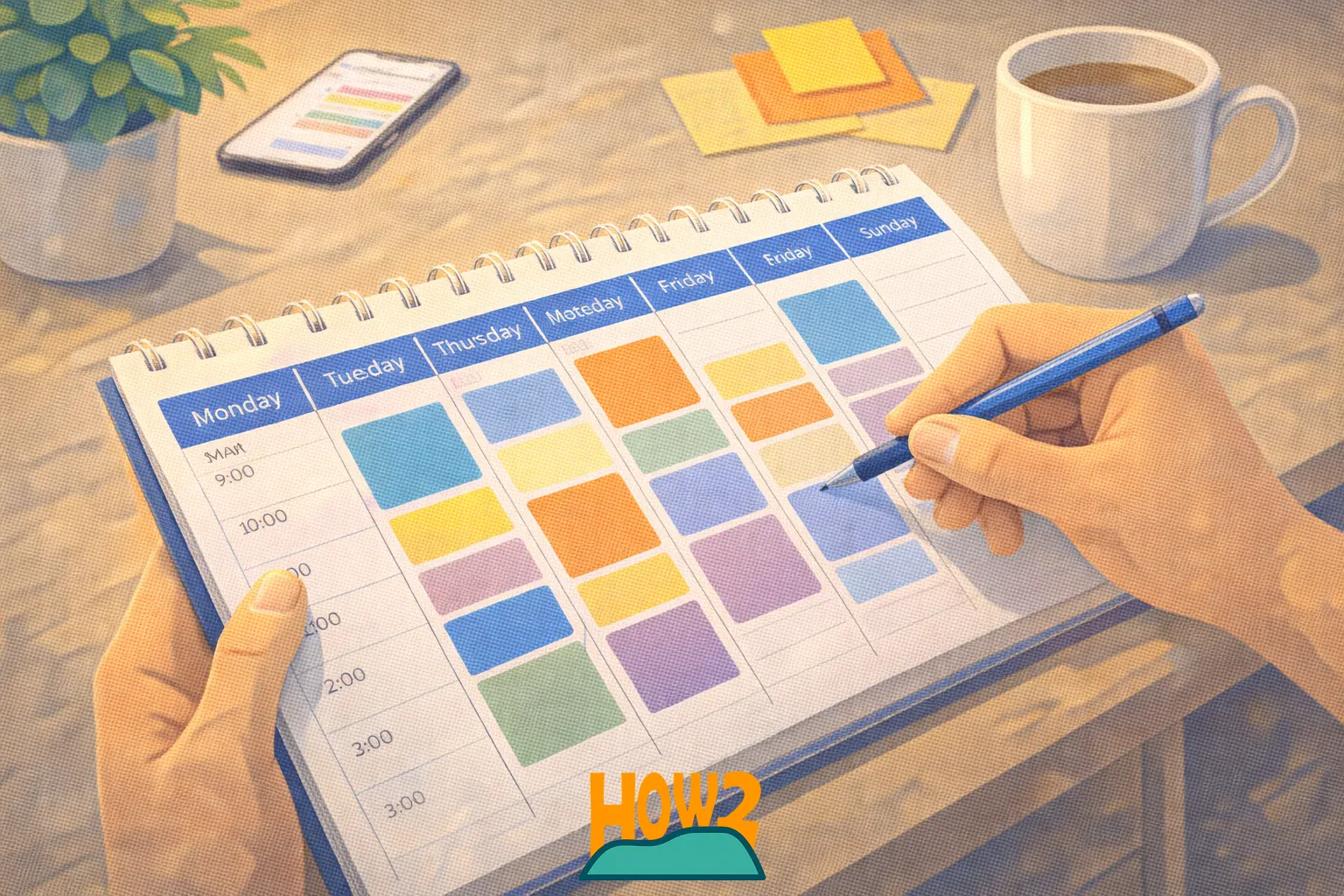

how to build a time-blocking calendar using only your phone. If you want a simple, portable system to organize focus time, meetings, breaks, and goals — without a laptop or paper — this step-by-step article will get you set up in 20–40 minutes and teach sustainable habits you can keep on the go.
Why time-blocking on your phone works
Time-blocking allocates chunks of your day to specific activities rather than letting a long to-do list govern your attention. Doing it on your phone has advantages:
- Always with you: you can review and edit blocks anywhere.
- Built-in notifications and recurring events automate reminders.
- Easy to combine calendar apps with timers, notes, and focus tools.
What you need (phone-only checklist)
- A smartphone with a calendar app (Google Calendar, Apple Calendar, or similar).
- A quick-notes app or the calendar app’s event notes field.
- An optional focus/timer app (Pomodoro or built-in timer).
- Consistent daily routine habits and a weekly planning time (10–20 minutes).
Step-by-step: Build your time-blocking calendar
1. Choose a calendar app and centralize
Use the calendar you already have synced to your accounts. If you use multiple calendars (work, personal), show them together so your phone displays all commitments in one view. Turn on notifications for event start and optionally for 5–10 minute warnings.
2. Create color-coded block types
Assign simple colors for quick scanning. Recommended scheme:
- Blue = Deep work / Focus blocks
- Green = Meetings / Calls
- Yellow = Admin / Email / Small tasks
- Purple = Exercise / Breaks
- Gray = Personal / Errands
Most phone calendars let you pick event colors when creating an event. Consistency helps your brain recognize patterns at a glance.
3. Block your anchors first
Start by adding non-negotiable anchors: sleep hours, commute time, family time, and work hours. These anchor blocks define the available window you’ll schedule into.
4. Add recurring daily focus blocks
Choose 1–3 daily focus blocks when you’re most productive (e.g., 9–11 AM and 2–3 PM). Create events labeled “Deep Work” or name them for a project. Set them to repeat daily on relevant days. Use 60–90 minute blocks for sustained focus; shorter blocks work if you’re starting out.
5. Schedule buffer and transition time
Between blocks, add 10–15 minute buffer events titled “Buffer / Break”. These prevent overruns and give time to reset. Make them recurring or add them manually where needed.
6. Convert your to-do list into calendar tasks
Instead of a long task list, drag small tasks into yellow admin blocks or create separate 20–30 minute blocks labeled with specific tasks (“Emails: Inbox Zero”, “Prepare slides – Project X”). This reduces decision fatigue and ensures tasks get time.
7. Use event descriptions and checklists
Use the event notes/description field for a mini-checklist: 3–5 bullets of what success looks like for that block. On iPhone or Android you can paste a checklist or link to a note app so you don’t need a computer.
8. Add reminders and alarms strategically
Set a start alarm and an optional pre-alert (5–10 minutes). For deep work, consider turning notifications off except for the calendar alert. Use Do Not Disturb on your phone during focus blocks if possible.
9. Build weekly review and planning time
Reserve 20–30 minutes at the end of your week (Sunday evening or Friday afternoon) to review what worked, move unfinished items, and set the next week’s blocks. Make this a recurring calendar event so it happens reliably.
Practical templates you can copy now
Use these simple daily templates to jumpstart your calendar:
- Template A (Knowledge work): 7:00–8:00 Personal routine, 9:00–11:00 Deep work, 11:00–11:15 Break, 11:15–12:30 Admin, 12:30–13:30 Lunch, 13:30–15:00 Deep work, 15:00–15:15 Buffer, 15:15–16:00 Meetings, 16:00–17:00 Wrap-up
- Template B (Shifted day): 6:00–7:00 Exercise, 7:30–9:00 Deep work, 9:00–10:00 Meetings, 10:00–10:15 Break, 10:15–12:00 Project work, 12:00–13:00 Lunch & personal, 13:00–15:00 Client calls, 15:00–16:00 Admin
Tips to stick with phone-only planning
- Keep blocks realistic: overbooking leads to abandonment. Start with fewer blocks and grow.
- Use short labels: event titles should be readable at a glance on phone screens.
- Leverage voice input: add or edit events quickly with voice commands (Siri, Google Assistant).
- Decline or reschedule meetings into your blocks: protect deep work by moving meetings to suitable times.
- Review daily: take 2 minutes each evening to tweak tomorrow’s blocks.
Common pitfalls and how to avoid them
- Perfectionism: Don’t chase an ideal schedule. Aim for useful and adjustable blocks.
- Over-scheduling small tasks: Group similar small tasks into admin blocks instead of separate events for each.
- Ignoring buffers: Without buffers, one overrun derails the whole day—add them intentionally.
Conclusion
Building a time-blocking calendar using your phone only is fast, flexible, and effective. Follow the steps above: centralize your calendar, color-code blocks, schedule anchors and focus time, use buffers, and perform a weekly review. With a few consistent habits you’ll transform open time into reliable, productive routines—all from the device in your pocket.
Quick action list
- Open your phone calendar and set anchor events (sleep, work hours).
- Create 1–2 recurring deep-work blocks in your most alert hours.
- Color-code block types and add 10–15 minute buffers.
- Schedule a weekly 20-minute planning session.